Step 2A - Create a Scenario
A main feature of nAIxus is the ability to create scenarios, tree-based conversations. We understand that some of our client would like to have specific and precise process when interacting with their end-users and that's how we propose to answer to this condition.
Creating a scenario can be done through 2 ways :
- From scratch
- Using Generative AI
In this tutorial, we will use the Gen AI to create a scenario and add some training data to have a first draft of scenario.
Create a scenario using Gen AI
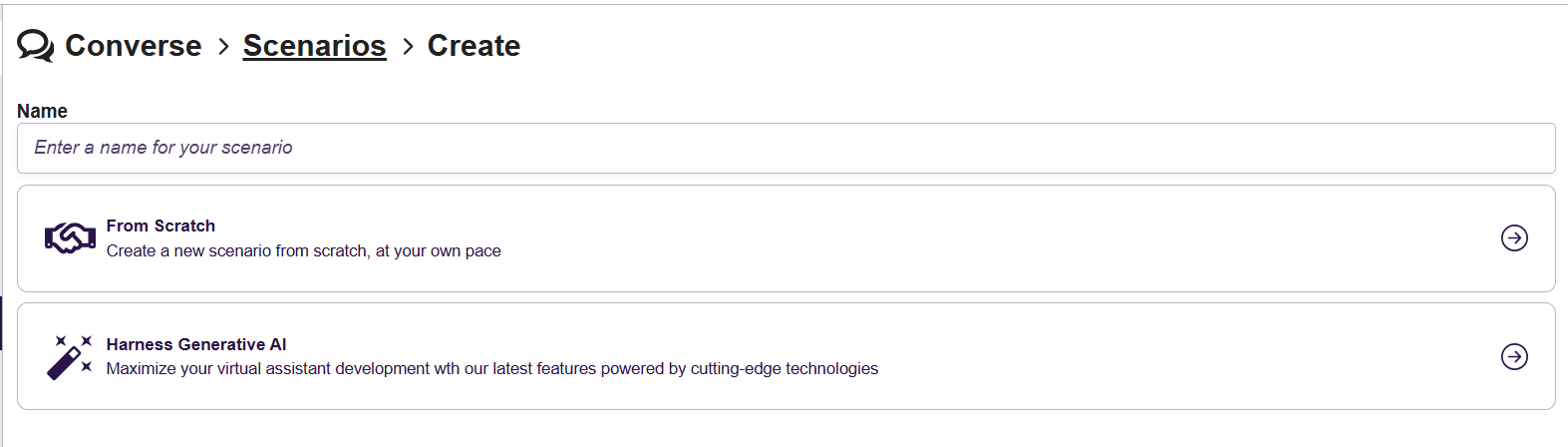
Create > Converse > ScenariosAfter choosing to create a scenario, enter the name you want for it, the name will be use as a system name and cannot be modified later. Select Harness generative AI
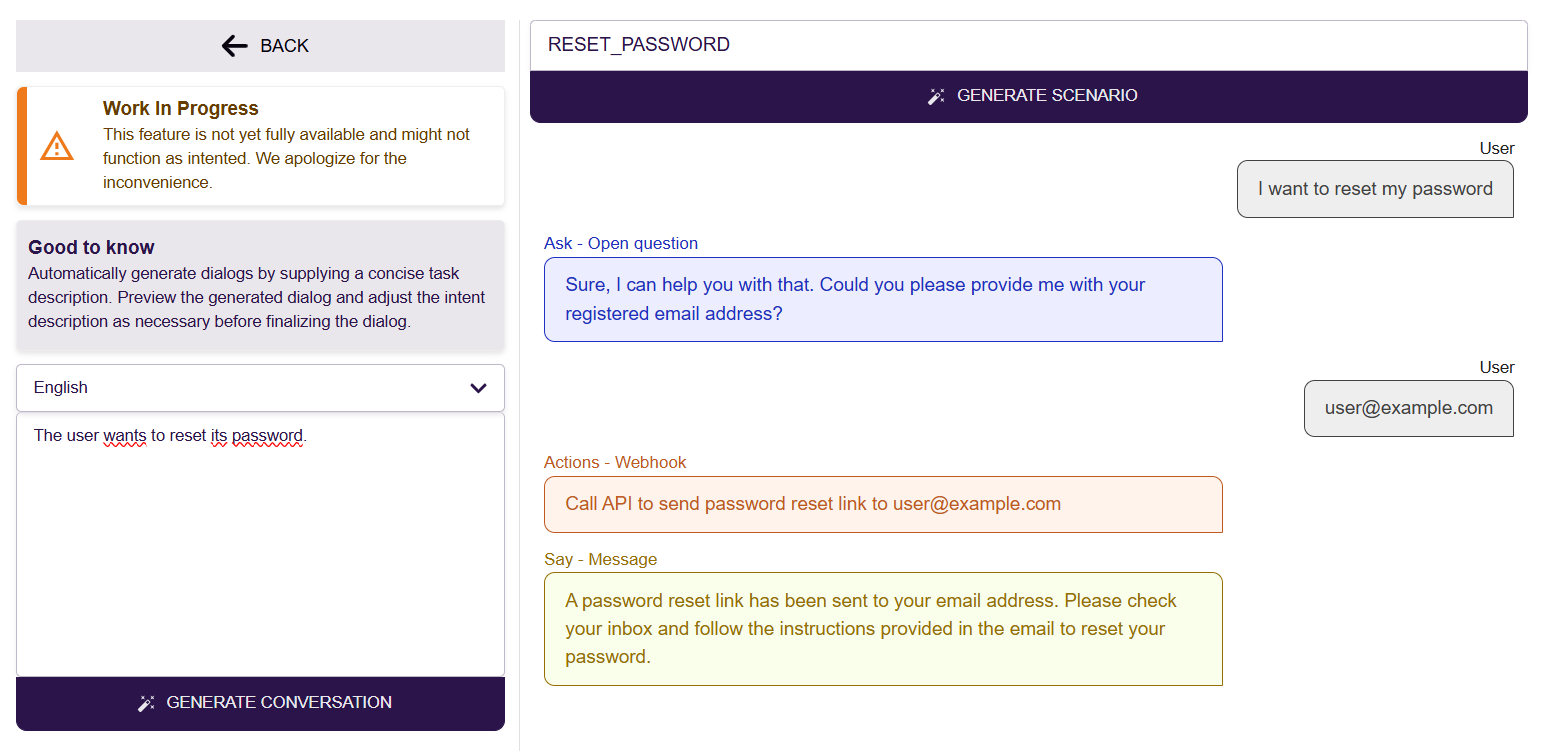
A new page will be displayed in which you can describe the use case you want to implement. Click on the Generate conversation to create a simulation of conversation.
Automatically generate dialogs by supplying a concise task description. Preview the generated dialog and adjust the intent description as necessary before finalizing the dialog.
A simulation of conversation between the chatbot and the end user will be proposed by the Generative AI model. Adjust it as much as you need and click on the Generate scenario button when you are happy with the content.
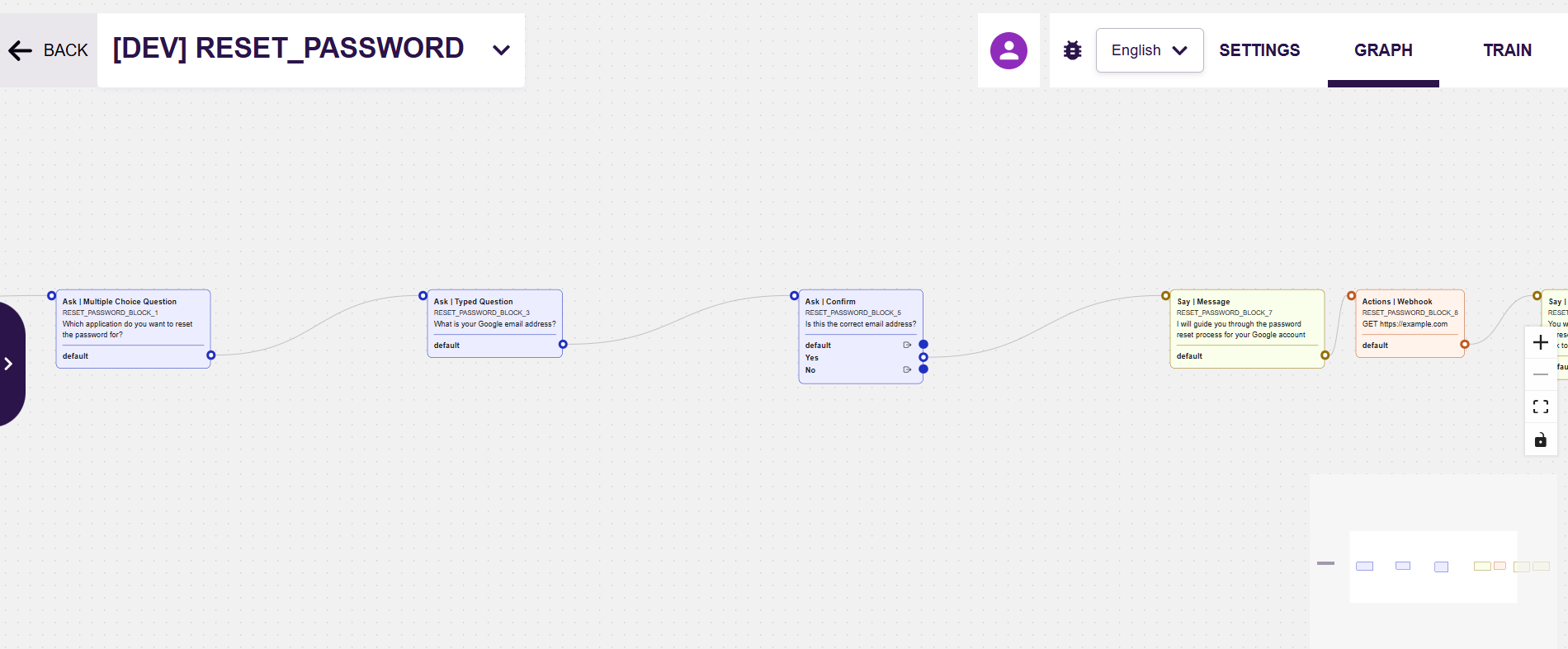
The generated scenario will appear on the modelisation interface. On this page, you can modify every block, questions and answer and create other branch of your scenario by adding some blocks.
Refer to the scenario section for more informations on blocks.
When the scenario is conform to your process. you can proceed with the training.
The last block of a branch should have the output defined on end of scenario
Train a scenario
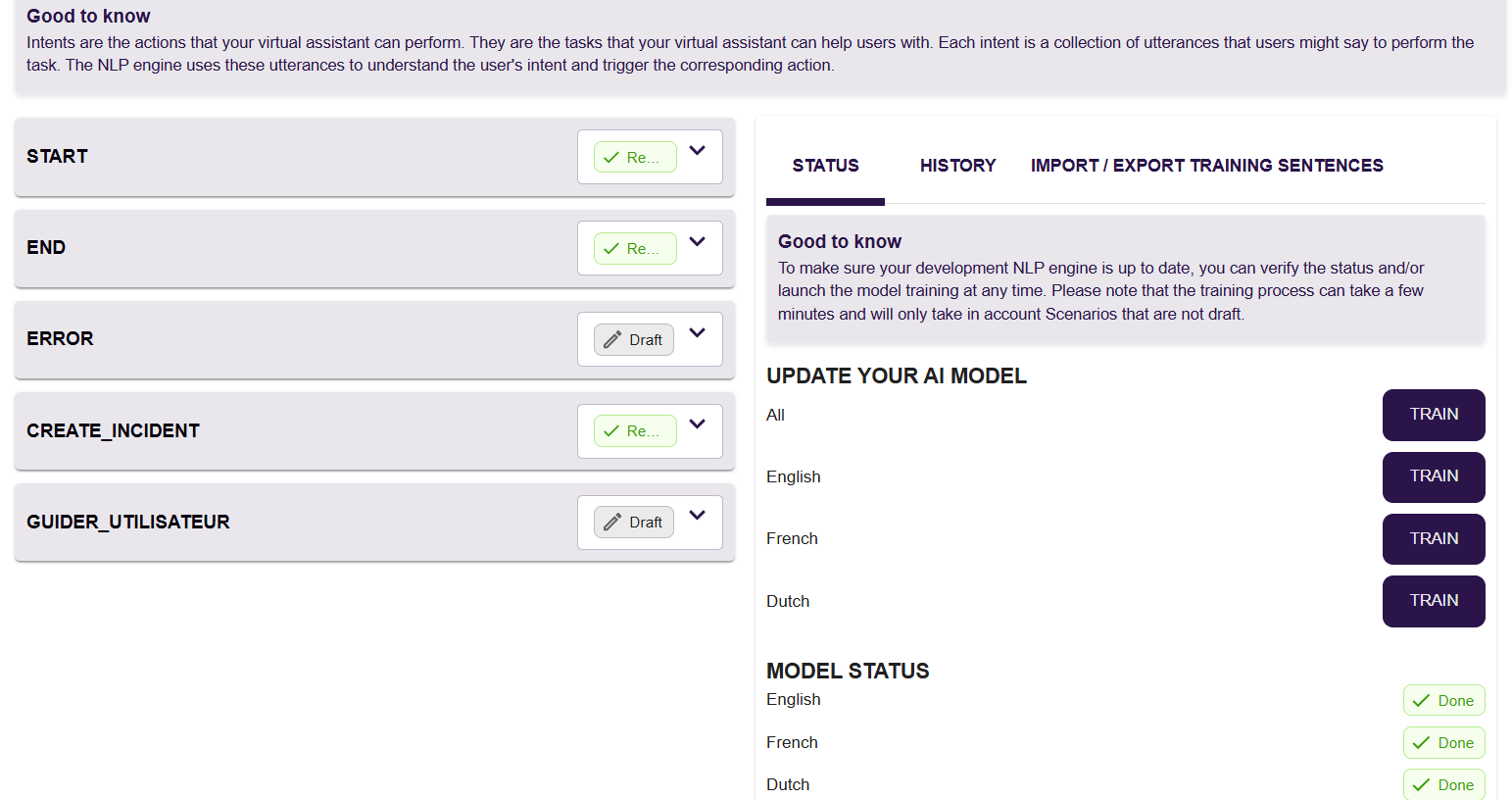
Intents are the actions that your virtual assistant can perform. They are the tasks that your virtual assistant can help users with. Each intent is a collection of utterances that users might say to perform the task. The NLP engine uses these utterances to understand the user's intent and trigger the corresponding action.
On the modelisation screen, you can go the Train tab in order to add some utterances (training data) to your scenario, either manually or by using GenAI.
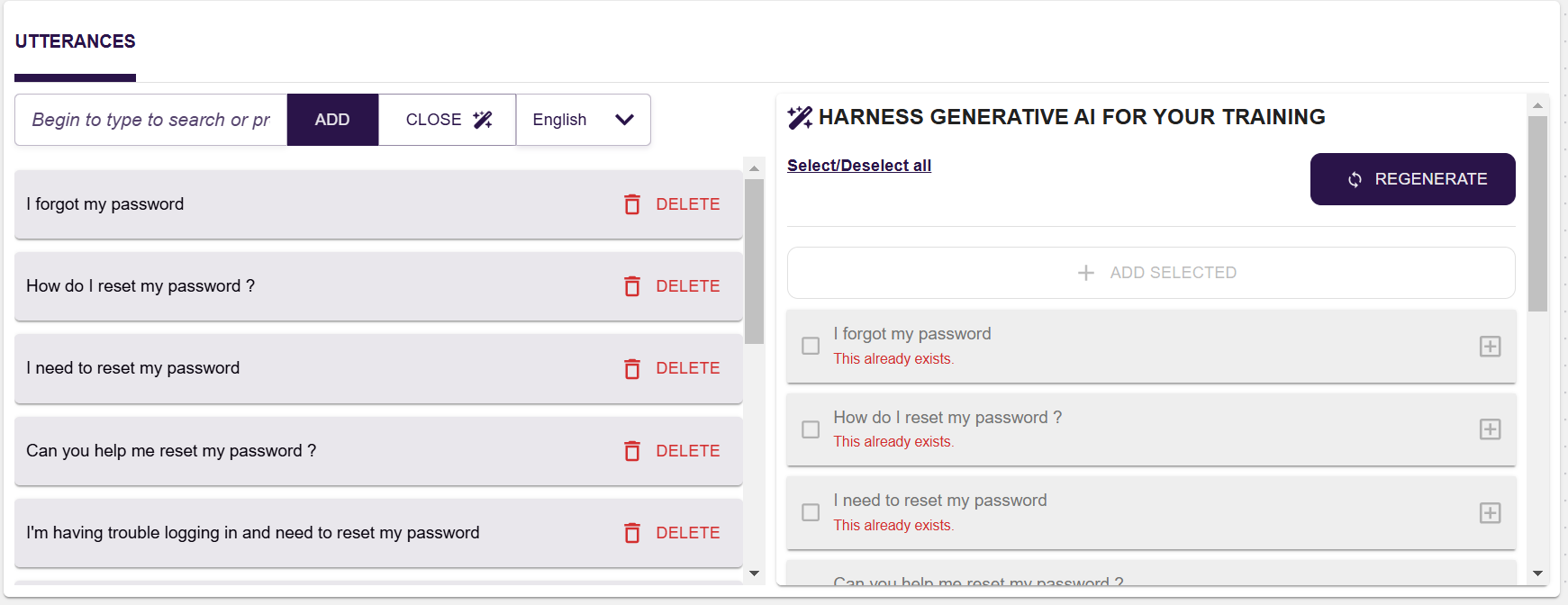
Using the Generative AI will make you propositions of sentences, based on the title of your scenario. You can then choose to add one or multiple propositions to your training.
Train the AI model
Create > NLP > TrainingOnce you are ready to test your scenario in conversation, the last step is to launch the training of your AI model.
For an intent to be trained, the status of it needs to be changed to Ready. The Draft intents won't be take into account in the global training.
Click on the Train button of one or all language you want to update the associated AI model.